Framer Motion: making pages feel alive without overdoing it
Subtle scroll animations and smooth transitions that make your site feel polished and intentional, not flashy.
A page that just appears all at once feels flat. A page where everything bounces, spins, and flies in feels exhausting. The sweet spot is somewhere in between: content that gently fades in as you scroll, lists that reveal one item at a time, transitions that help you understand where you are. Framer Motion is the tool that makes that sweet spot easy to hit.
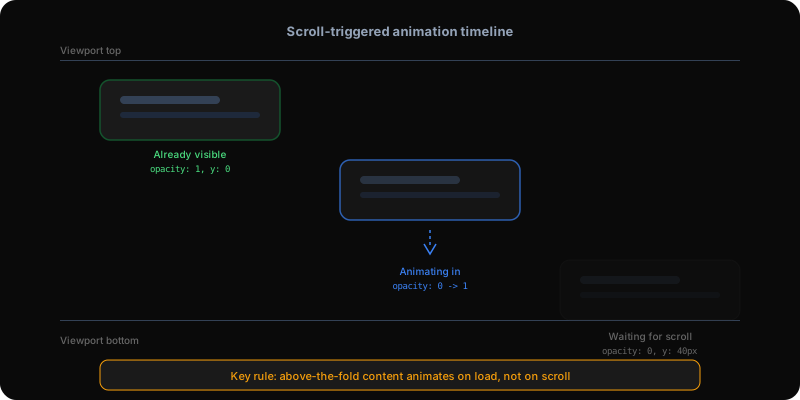
Almost every section on this portfolio uses Framer Motion's scroll-triggered animation. As you scroll down the blog page, the case study cards fade in from the left one at a time. The essay list items appear with a subtle slide. The featured strip at the top fades up from below.
Each animation is defined by two states: what the element looks like before it is visible (hidden, slightly below its final position, maybe slightly blurred) and what it looks like after (visible, in its natural position, fully sharp). Framer Motion handles the smooth transition between those two states automatically.
A practical example from this site: the blog post body paragraphs. Each paragraph starts invisible and slightly below its final position. As you scroll it into view, it fades in and slides up into place. The animation takes half a second and only plays once — scrolling back up does not replay it. This creates a reading experience that feels like the content is gently appearing for you, rather than sitting there waiting.
I shipped a version of the blog page where all the content was wrapped in scroll-triggered animations. The Featured strip, the Case Studies, the Essays — everything started invisible and waited for a scroll trigger. The problem? On a fresh page load, the visitor sees the page without scrolling. The Featured strip was above the fold (visible without scrolling), but it was waiting for a scroll trigger that never fired. Result: a completely blank-looking page.
The fix was simple but critical: above-the-fold content should animate on page load, not on scroll. Only sections below the fold should wait for scroll triggers. The Featured strip now animates the moment the page loads. The Case Studies section, which is partially visible, also loads immediately. Only the Essays section far down the page waits for scroll.
This is the single most important rule for scroll animations: if it is the first thing people see, do not make them scroll to reveal it.
If it's the first thing people see, don't make them scroll to reveal it.
Add Framer Motion to your project, then wrap any element you want to animate. Tell it what it should look like before (hidden, below its final position) and what it should look like after (visible, in its natural position). For scroll-triggered animations, use the 'when in view' option and set it to play only once.
Start with a single section: make it fade in from below when it scrolls into view. Once that feels right, apply the same pattern to other sections. Keep animations subtle — short durations (half a second or less), small movements (10 to 20 pixels), and no bouncing or overshooting. Portfolio sites and landing pages benefit most. For content-heavy pages, keep animations minimal so they do not slow down reading.
Building AI products in public.
Occasional notes on what I'm shipping, what's working, and what broke — straight to your inbox. No spam, unsubscribe anytime.
Product leader shipping across enterprise SaaS, AI in production, and 0→1. Writing about what actually ships — not what sounds good in a deck.